How to boost gaming performance
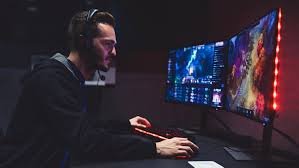
A long, detailed guide for both beginners and experts on how to boost gaming performance for PC, laptop, and mobile is presented herein.
This covers hardware.
HOW TO BOOST GAMING PERFORMANCE — FULL, VERY LONG GUIDE ????
Gaming performance will depend pretty much on the power of the hardware, system optimization, thermals, and game settings.
Even without expensive upgrades, you can increase FPS, reduce lag, and make games smoother.
- Hardware Upgrade Or Optimisation (Most Powerful Improvement)
Hardware plays the biggest role in gaming. Here’s how to maximize it:
1.1 GPU (Graphics Card) Improvements
The GPU is the heart of gaming performance.
A stronger GPU = higher FPS + better graphics.
How to improve GPU performance without upgrading:
Update GPU drivers to the latest versions using NVIDIA/AMD update tools.
Enable High-Performance Mode in GPU control panel.
Overclocking the GPU with MSI Afterburner would be mild, if done properly.
Lower extra graphical effects in games: shadows, AA, reflections.
If upgrading:
NVIDIA RTX 3060 → 4060/4070 gives huge FPS jump.
AMD RX 6600 → 7600/7700 improves price/ performance.
Improvements to CPU Section 1.2
CPU affects open-world games, battle royale games, and simulation games.
Enhance CPU performance:
Use the High-Performance Power Plan.
Close all background apps: Chrome, Discord, Windows Updates.
Keep the CPU temperature below 85°C.
Enable XMP/DOCP for faster RAM.
1.3 RAM Optimization
Minimum for smooth modern gaming: 16 GB.
For heavy titles/multitasking: 32 GB.
Improve RAM performance:
Activate XMP (Intel) or DOCP (AMD).
Dual-channel RAM is always faster than single-channel.
Disable or remove all unnecessary applications from the startup process.
SSD vs HDD 1.4
SSD greatly helps with loading times and reduces stutters.
Move your game install folder to SSD for :
Faster loading
Less texture popping
Smoother, in general
- Windows Optimization: Major FPS Boost on PC/Laptop
https://www.digitaltrends.com/wp-content/uploads/2022/08/windows-game-mode-optimize.jpg?fit=1792%2C1167&p=1&utm_source=chatgpt.com
https://i.ytimg.com/vi/1CLw2LSZd_Y/maxresdefault.jpg?utm_source=chatgpt.com
https://i.ytimg.com/vi/lWW9atms5Uc/maxresdefault.jpg?utm_source=chatgpt.com
Follow all these settings for maximum performance:
2.1 Enable Game Mode
Go to Settings → Gaming → Game Mode → ON.
Helps by stopping background updates, optimizing CPU/GPU for games.
2.2 Disable Xbox Game Bar & DVR
These features record gameplay in the background and reduce FPS.
Settings → Gaming → Xbox Game Bar → OFF
2.3 High Performance / Ultimate Performance Mode
Run your PC at full power:
Control Panel → Power Options → High Performance
OR
Ultimate Mode: Run this command admin CMD:
powercfg -duplicatescheme e9a42b02-d5df-448d-aa00-03f14749eb61
2.4 Update Graphic Drivers
NVIDIA GeForce Experience
AMD Radeon Software
Intel Arc Control
Always install Game Ready Drivers for new titles.
2.5 Disable Background Apps
Open the Task Manager, click on the Startup tab, and disable the unnecessary apps.
More applications running = lower FPS.
2.6 Set GPU as Default
Settings → System → Display → Graphics → Set your game to High Performance GPU
- Settings within the Game to Increase FPS
Game settings matter A LOT. Lower these for the biggest FPS jump:
Settings to lower for High Performance
Shadows
Anti-aliasing (TAA, MSAA)
Reflections
Smoothening
Volumetric fog
Motion blur (disable always)
Settings you can keep medium/high:
Textures (if enough VRAM)
View distance
- Cooling & Airflow — The Not-so-Secret Secret of Performance
Cooler system = higher FPS and long hardware life.
How to enhance cooling:
Clean dust from fans and heat sinks.
Use a cooling pad for the laptop.
Replace old thermal paste every 1–2 years.
Improve PC airflow:
Front fans = intake
Back/top fans = exhaust
Temperature goals
CPU: 60–85°C
GPU: 60-80°C
In the event of temperatures rising above 90°C → FPS will suddenly drop.
- Network Optimization for Online Gaming
Lag kills gameplay. Improve your internet performance:
Low latency tips:
Use the wired connection instead of Wi-Fi.
If on Wi-Fi → use 5 GHz band.
Close downloads in background.
Change DNS to Google DNS: 8.8.8.8
Use game servers which are near your region.
- Performance Tips in Mobile Gaming
6.1 Phone Settings

Turn on Performance Mode or Game Mode.
Turn off the battery saver.
Clear recent apps.
Employ native game booster tools of Samsung, Realme, Poco, etc.
6.2 Reduce Heat
Gaming generates heat, which reduces performance.
Play in a cool room.
Avoid playing while charging. Remove your phone cover during long sessions. 6.3 Lower In-Game Graphics Lower shadows, bloom, AA. Reduce resolution if available. 6.4 Keep Storage Free Always keep 20–25% of the storage empty. All these apps eventually slow down your device. 7. Advanced Tips (For Enthusiasts) Overview 7.1 GPU Overclocking Using MSI Afterburner: +100 MHz core +300 MHz Memory Increase the speed of the fans Safely gives 5–15% more FPS. 7.2 CPU Undervolting Reduces heat → improves stability & FPS. Intel XTU or AMD Ryzen Master. 7.3 Disable Fullscreen Optimization Right click game → Properties → Compatibility → Check Disable Fullscreen Optimization Change Game Files to High Priority ???? 7.4 Task manager → Details → Right-click game → Set Priority High 8. Cleaning & Maintenance — Very Important yet Often Ignored Dust reduces cooling and airflow. Outdated thermal paste lowers performance. Fragmented HDDs slow loading down; use SSD. Update BIOS for stability improvements. Summary Table Area Improvement Level Notes GPU-drivers ⭐⭐⭐⭐⭐ most noticeable fps boost Cooling⭐⭐⭐⭐ Prevents lag & throttling Game settings ⭐⭐⭐⭐⭐ Works on every device RAM upgrade ⭐⭐⭐⭐ Big boost for modern games SSD ⭐⭐⭐⭐ Ultra-fast loading & smoothness Windows tweaks * Great for low-end PCs Overclocking ⭐⭐⭐ For advanced users








Winbuzz login, easy peasy! Had no trouble signing up or logging in. Smooth process all around. Recommended if you need quick access. Check it out! winbuzz login